

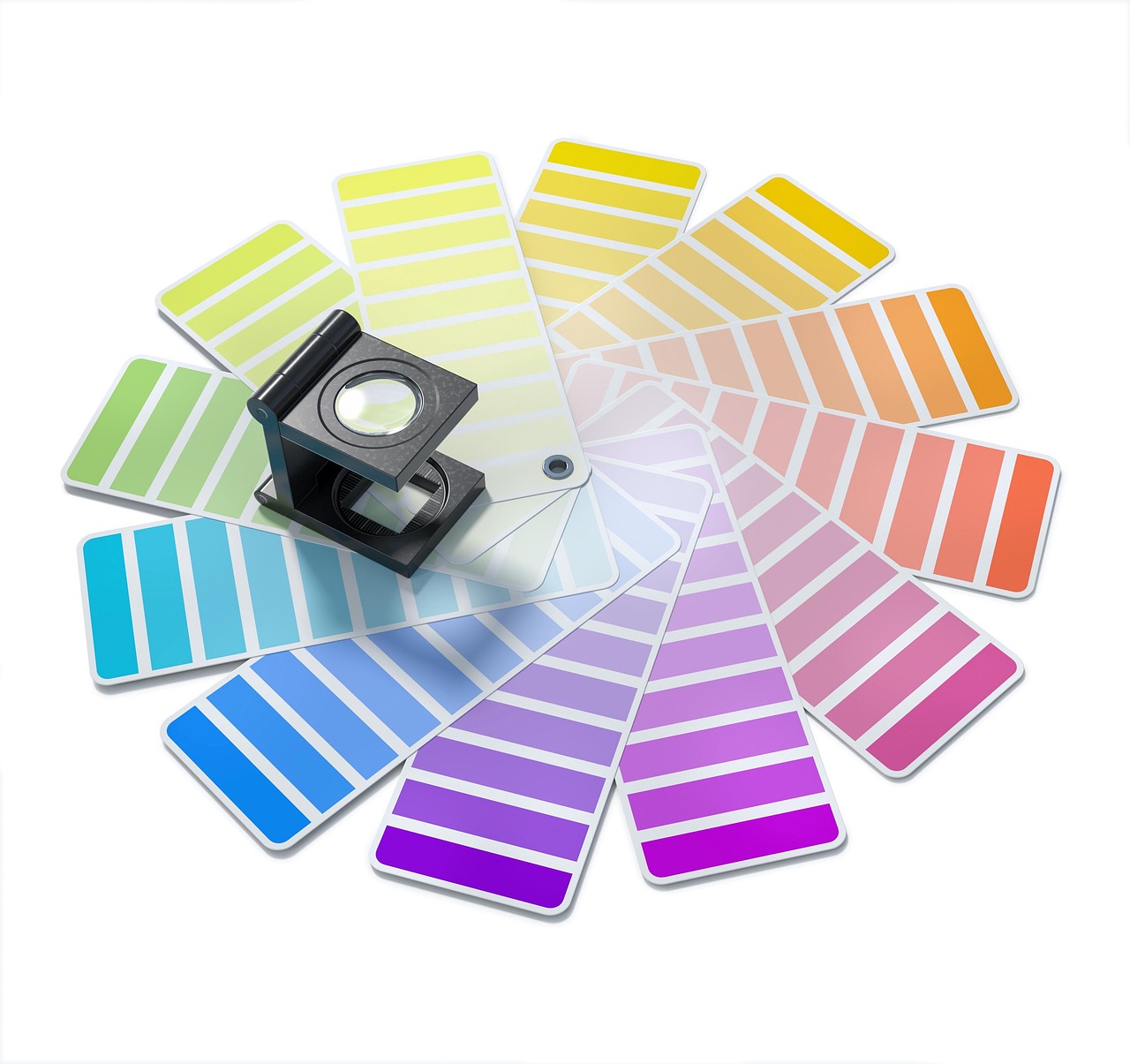
When a vibrant digital design emerges dull or off-color from the printing press, the culprit is almost always a misunderstanding of color spaces. To convert RGB to CMYK accurately is not merely a technical step; it’s a critical bridge between the luminous world of screens and the tangible realm of ink on paper, demanding careful attention to detail and a strategic approach.
- RGB (Red, Green, Blue) is for screens, using light to create color, while CMYK (Cyan, Magenta, Yellow, Key/Black) is for print, using ink absorption.
- Color gamut differences mean some RGB colors can’t be perfectly reproduced in CMYK, leading to unavoidable shifts.
- Selecting the correct CMYK profile (e.g., SWOP, FOGRA) is paramount, as it’s tailored to specific paper types and printing presses.
- Mastering rich black compositions is crucial for deep, consistent blacks in print, distinguishing them from simple process black.
- Soft proofing and hard proofing are essential steps to preview and verify print results before final production.
Convert rgb to cmyk: The Fundamental Divide: RGB vs. CMYK Color Spaces
RGB and CMYK represent fundamentally different approaches to color reproduction. RGB, an additive color model, combines red, green, and blue light to create a broad spectrum of colors, making it ideal for displays like monitors, TVs, and web graphics. More light means brighter colors, and combining all three at maximum intensity produces white. The range of colors RGB can display, known as its color gamut, is vast and brilliant. CMYK, conversely, is a subtractive color model used in printing. It employs cyan, magenta, yellow, and black inks. These inks absorb certain wavelengths of light and reflect others. When mixed, they subtract light from the white paper, creating color. Combining all CMYK inks theoretically produces black, but in practice, a separate ‘Key’ (black) ink is used for depth and economy. The CMYK color gamut is inherently smaller than RGB’s, particularly in bright, saturated blues, greens, and oranges.
Why Conversion is Non-Negotiable for Print
The necessity to convert RGB to CMYK stems directly from these distinct color models. A printer physically can’t reproduce the full vibrancy of an RGB file using CMYK inks. Attempting to print an RGB file directly often results in unpredictable color shifts, muted tones, and a general lack of fidelity to the original design. This is because the printing press’s Raster Image Processor (RIP) will perform an automatic, often suboptimal, conversion if not provided with a CMYK file. For instance, a brilliant electric blue designed in RGB might become a dull, desaturated navy when printed from an unconverted file. This discrepancy can significantly impact brand consistency, product appeal, and overall design effectiveness. Professional printing requires CMYK to ensure predictable and consistent color output across various print runs and materials. Worth noting: this conversion process is often the first real test of a designer’s understanding of their final medium.
Navigating CMYK Profiles: Choosing the Right Standard
One of the most critical aspects of converting RGB to CMYK is selecting the appropriate ICC (International Color Consortium) profile. An ICC profile defines the characteristics of a color space, ensuring consistent color appearance across different devices and media. For CMYK, these profiles describe how a specific set of inks will behave on a particular paper stock, using a particular printing process. Common CMYK profiles include:
- U.S. Web Coated (SWOP) v2: Standard for web offset printing in North America, particularly on coated stocks.
- FOGRA39 / ISO Coated v2: Widely used in Europe for coated paper.
- GRACoL 2006 (Coated 1): A popular North American standard for commercial offset printing on coated stock, known for its G7 calibration.
- PSO Coated v3: The latest iteration of ISO-standardized profiles for coated stock, often preferred for high-quality European printing.
Your print vendor will specify their preferred CMYK profile. Using the wrong profile can lead to color discrepancies even after converting, as the conversion is optimized for a different press or paper. In real terms, always ask your printer for their recommended profile before beginning the conversion process. According to the International Color Consortium (ICC), using device-specific profiles is key to color accuracy (2026).
Step-by-Step: Converting in Popular Design Software
While the specific menu paths may vary slightly by software version, the core principles for converting RGB to CMYK remain consistent across Adobe Creative Suite applications. The wrinkle here: direct conversion often results in immediate visual changes on screen, so soft proofing is crucial.
- In Adobe Photoshop: Go to `Edit > Convert to Profile`. In the dialog box, set the ‘Destination Space’ to the required CMYK profile (e.g., ‘U.S. Web Coated (SWOP) v2’). Ensure ‘Intent’ is set to ‘Perceptual’ for photographs to preserve visual relationships, or ‘Relative Colorimetric’ for vector graphics to prioritize exact color matches where possible. Keep ‘Black Point Compensation’ enabled.
- In Adobe Illustrator: For new documents, select CMYK as the color mode from the outset. For existing RGB documents, go to `File > Document Color Mode > CMYK Color`. Then, to assign a specific profile, navigate to `Edit > Assign Profile…` and select your target CMYK profile. For embedded images, you may need to convert them within Photoshop first, then place them.
- In Adobe InDesign: InDesign is primarily a layout application. It handles color conversion at output. While you can set the document’s transparency blend space to CMYK (`Edit > Transparency Blend Space > CMYK`), the actual conversion for placed RGB images happens during export. When exporting to PDF for print (`File > Export > Adobe PDF (Print)`), select `Output` in the export dialog. Under ‘Color Conversion’, choose ‘Convert to Destination (Preserve Numbers)’ or ‘Convert to Destination’, specifying your printer’s CMYK profile in the ‘Destination’ field. This approach allows for non-destructive editing in RGB until the final export.

Mastering Blacks: Rich Black vs. Process Black
This is a nuanced area often overlooked, leading to disappointing print results. When converting RGB to CMYK, a pure RGB black (0,0,0) often translates to a ‘process black’ (0% Cyan, 0% Magenta, 0% Yellow, 100% Black) in CMYK. While this works for small text, it can appear weak or grayish in larger areas, especially on uncoated paper. ‘Rich black’ is a composite black created by adding percentages of other CMY inks to the 100% black ink. This creates a deeper, more saturated black. Common rich black formulas vary:
- For general use: C:30% M:20% Y:20% K:100%
- For very deep black: C:60% M:40% Y:40% K:100% (use with caution to avoid excessive total ink coverage)
- For text over color: K:100% (to avoid registration issues)
Always confirm your printer’s preferred rich black recipe. Exceeding the total ink limit (the maximum percentage of all inks combined, typically 280-320%) can lead to muddy colors, slow drying, and smudging. This is particularly important for large solid black areas in brochures or packaging.
The Art of Proofing: Soft vs. Hard Proofs
Even with meticulous conversion, surprises can happen. Proofing is your final quality check.
| Feature | Soft Proofing | Hard Proofing |
|---|---|---|
| Description | Previewing CMYK conversion on a calibrated monitor within design software. | Physical printout, typically from the printer’s calibrated system, replicating final output. |
| Advantages | Quick, cost-effective, allows for immediate adjustments, simulates various paper types. | Most accurate representation of final printed piece, accounts for paper stock, ink, and press characteristics. |
| Disadvantages | Relies on monitor calibration, can’t perfectly replicate light reflection from paper, subjective interpretation. | Can be expensive, time-consuming (shipping), requires physical review. |
| Best Use | Initial color checks, making broad color adjustments, identifying major shifts. | Final approval, critical color matching, client sign-off for high-stakes projects. |
Soft proofing (`View > Proof Setup` in Photoshop) allows you to see how your RGB colors will look when converted to a specific CMYK profile on your screen. However, a monitor emits light, while paper reflects it, so a perfect match is impossible. Hard proofs, or ‘contract proofs,’ are the gold standard. They are usually created on specialized proofing equipment that simulates the actual press conditions, providing the most accurate preview of the final printed piece.
Common Pitfalls and How to Avoid Them
Several common mistakes can derail your RGB to CMYK conversion, even for experienced designers. Understanding these can save significant time and money.
- Forgetting to Convert Embedded RGB Images: It’s common to convert the main document but overlook individual RGB images placed within. Always ensure all linked and embedded graphics are in CMYK or converted at export.
- Ignoring Total Ink Limit: As mentioned, too much ink leads to undesirable results. Design software can warn you, but manually checking rich black compositions and heavily saturated areas is good practice.
- Using Generic CMYK Profiles: Relying on default CMYK profiles like ‘CMYK U.S. Sheetfed Coated’ without consulting your printer is a recipe for disappointment. Always use the specific profile your print shop recommends.
- Over-Reliance on Screen Proofing: While useful, soft proofing is not a substitute for a hard proof, especially for color-critical projects. Your monitor’s backlight and calibration will always influence your perception.
- Not Understanding Spot Colors: If your design uses specific brand colors like Pantone, these are spot colors, not process colors. They are mixed specifically and applied in addition to (or instead of) CMYK, offering a wider gamut than CMYK alone. Don’t convert spot colors to CMYK unless absolutely necessary, as it will likely shift the color. Convert RGB to CMYK: The Essential Guide for Print Perfection
Advanced Tips for Achieving Print Perfection
Beyond the basic conversion, a few advanced practices can elevate your print results significantly. First, monitor calibration is non-negotiable. Using a hardware calibrator like an X-Rite i1Display Pro or Datacolor SpyderX ensures your screen accurately displays colors, making soft proofing more reliable. This is a foundational step in any serious color management workflow. Reviewed against published specifications, high-quality calibrators ensure a Delta E value of less than 2, a professional standard. Second, understand rendering intents. When converting from a larger gamut (RGB) to a smaller one (CMYK), some colors need to be adjusted. ‘Perceptual’ intent shifts all colors proportionally to maintain visual relationships, often preferred for photographic images. ‘Relative Colorimetric’ clips out-of-gamut colors to the nearest reproducible CMYK equivalent while preserving in-gamut colors, better for vector graphics where exact color matching is paramount. The choice impacts how the color shift manifests. Third, consider the paper stock’s impact. Uncoated papers absorb more ink and show colors differently than coated stocks. A good CMYK profile accounts for this, but subtle differences will always exist. For example, a vibrant yellow on screen might appear slightly muted on uncoated paper. Discussing paper choices with your printer early can influence your color decisions. In my 15 years working in print production, I’ve seen countless instances where a slight paper change drastically altered client perception of color accuracy, despite perfect file conversion. Finally, for high-volume or complex print jobs, inquire about G7 calibration. This method, developed by Idealliance, standardizes how printers achieve a neutral gray balance, leading to more consistent and predictable color reproduction across different presses and printing conditions. Many leading print houses adhere to G7, making their output highly reliable. According to Idealliance (2025), G7 certification is a benchmark for print quality and consistency.
Frequently Asked Questions
Can I avoid color shift entirely when converting RGB to CMYK?
No, it’s impossible to avoid some degree of color shift when converting from RGB to CMYK due to their inherent differences in color gamut. RGB uses light and has a broader, more vibrant spectrum, especially in bright blues and greens, that CMYK inks simply can’t reproduce. The goal is to manage and minimize this shift predictably.
What happens if I send an RGB file directly to a printer?
If you send an RGB file to a commercial printer, their Raster Image Processor (RIP) or design software will perform an automatic, often generic, conversion to CMYK. This unmanaged conversion can lead to unpredictable and undesirable color shifts, dullness, or even incorrect color interpretation, resulting in a printed product that doesn’t match your expectations.
When should I use ‘Perceptual’ vs. ‘Relative Colorimetric’ rendering intent?
Use ‘Perceptual’ intent for images with a wide range of colors, like photographs, as it compresses the entire color gamut to maintain visual relationships, even if some colors shift. Use ‘Relative Colorimetric’ for graphics or logos with specific brand colors, as it prioritizes exact matches for in-gamut colors, clipping out-of-gamut colors to the nearest reproducible shade.
What is total ink limit, and why is it important?
Total ink limit refers to the maximum percentage of all CMYK inks combined that can be applied to a single point on paper without causing issues. Exceeding this limit (typically 280-320%) can lead to slow drying, ink smudging, paper cracking, and muddy, oversaturated colors. Printers specify this limit to ensure optimal print quality and prevent production problems.
How important is monitor calibration for CMYK conversion?
Monitor calibration is crucial. A calibrated monitor ensures that the colors you see on screen are as accurate as possible, making soft proofing a reliable preview of your CMYK conversion. Without calibration, your screen might display colors inaccurately, leading to incorrect color decisions during the design and conversion process.
Should I convert all my images to CMYK before placing them in InDesign?
For best control, it’s generally recommended to convert photographic images to the target CMYK profile in Photoshop before placing them in InDesign. While InDesign can convert at export, pre-converting allows you to fine-tune color adjustments in Photoshop, where more solid color correction tools are available, giving you greater artistic control over the final output. Converting RGB to CMYK is a foundational skill for anyone involved in print design, acting as the critical bridge between digital creation and physical output. By understanding the underlying color models, meticulously selecting the correct CMYK profiles, mastering rich black techniques, and diligently proofing your work, you empower your designs to achieve their intended impact on paper. The actionable takeaway here is clear: never underestimate the power of a well-managed color workflow; it’s the difference between a good design and a truly impactful printed piece. Information current as of July 2026; pricing and product details may change.